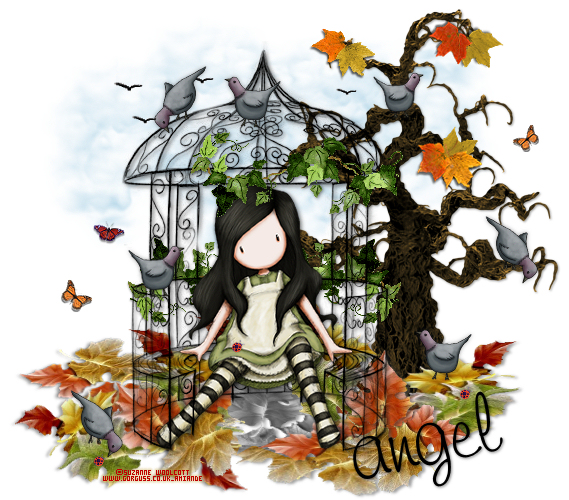
There are two favorite seasons I love Spring and Autumn.
They are the most beautiful colors displayed, so as you guessed
it is "Beautiful Autumn"
Sunf has Beautiful Designs and I would like to thank her so kindly for
for sharing her tutorials and allowing me to share my results on her tutorial
with the rest of you ;0)
The Artist that I am using is by ©Suzanne Woolcott www.gorguss.co.uk
In this lesson I got the opportunity to play with "Beautiful Autumn Colors"
This is a webset consisting of:
A Header Image
Three Complimentary Tiles
these are used for the background
(a solid, a gradient and a patterned tile)
A Divider
Colored Scrollbar
A Set of Buttons
(Back, Home, Next)

We discussed in Lesson 1 how to make the different style tiles, so let's
move on and talk about
How to Make a Divider
The divider is the insert that is placed between your text and images,
as you look above and going down the page you will see
an image line of leaves this is the divider.
To make this design I used my PSP graphics program and used a leaf tube,
I opened a new image placed the leaf tube as a new layer,
then duplicating the leaf to a total of 14 leaves and colorizing each,
then I mirrored and also flipped the leaf.
Next I merged all the layers and added a drop shadow of:
Vertical 1
Horizontal 1
Opacity 40
Blur 4.00
Color Black
Then I saved as a .png format so that it has a transparent background,
and can be used again by opening it up in PSP and placing another
color background for future use. You can then save as a .png, .gif or .jpg...
I saved my dividers onto a white background as a .jpg
to match my color background.
*right click to save image below

Colored Scrollbar
The Scrollbar is the bar that you use on the right side
to scroll up and down the page. It looks nice to match your theme.
There is an HTML code that will allow you to change the colors.
I fine this a bit getting used to cause it has 7 colors for you to change...
Then you say which ones lol! Some I have made the same color
and others are different. I am still learning what each color represents.
A Button can be in any form of an image or typed out text
that is a hyperlink. The image or hyperlink will take you to
another page, either on the site you are at or onto another site.
How to Make a Font/Text Button
I used the font called
Leaf 1
Using PSP opened a new image 150 x 50 pixels, flood fill white,
took a color that will coordinate with my Beautiful Autumn Theme,
then typed out Back and gave it a drop shadow
and saved as a .jpg, and did the same for Home, Next Font/Text Buttons.
You can see on Lesson 1 my other style buttons click on the back button to view.
The results are...



*note to use a decorated font/text you must make it as a graphic form
but I am in the process of still learning Web Design so I will come back
and verify whether this is true or not...
I hope you that you enjoyed Lesson 2
Please feel free to Contact Me
Designed by AngelAD taught by "Red Rose Web Design 2007"